Why Troubleshooting Microsoft Endpoint Manager Matters?
Businesses today depend on Microsoft Endpoint Manager to manage apps, devices and security policies across the organization. When errors appear, teams often struggle with slow performance, failed app installs or policies not applying correctly. Regular troubleshooting Microsoft Endpoint Manager issues helps IT teams fix these problems on time and avoid disruptions. It also ensures that common Microsoft Endpoint Manager problems like device sync errors or Intune app installation problems do not affect daily operations. The table below highlights real problems and how troubleshooting Microsoft Endpoint Manager issues can turn them into business benefits:|
Benefit |
Problem |
Solution For Business |
| Better Productivity | An employee cannot access email because of a device sync error | Quick troubleshooting restores access so the employee can continue working without delays |
| Stronger Security | A policy not applying in Intune leaves a laptop without encryption enabled | Fixing the policy ensures sensitive data is protected and the device meets compliance |
| Fewer Recurring Issues | Teams face repeated issues in Microsoft Endpoint Manager like app updates failing | Identifying the root cause stops the issue from happening again and saves IT time |
| Smooth User Experience | A sales team cannot install a critical CRM app due to Intune app installation problems | Troubleshooting resolves the installation error so the team can use the app during client visits |
| Long Term Stability | IT spends hours daily fixing common problems instead of focusing on upgrades | With proper troubleshooting, systems stay reliable and IT teams get more time to focus on projects that drive business growth |
Top 7 Microsoft Endpoint Manager Issues and Solutions
Managing devices and apps in a business environment comes with its own set of challenges. Many IT teams often face issues like failed app installations, login problems or policies not applying correctly. These disruptions can slow down operations and create frustration for both employees and IT staff. Regular Troubleshooting Microsoft Endpoint Manager Issues is essential for keeping systems secure, devices compliant and users productive. Below we have listed the most common Microsoft Endpoint Manager problems along with step by step solutions:1. Device Sync Errors
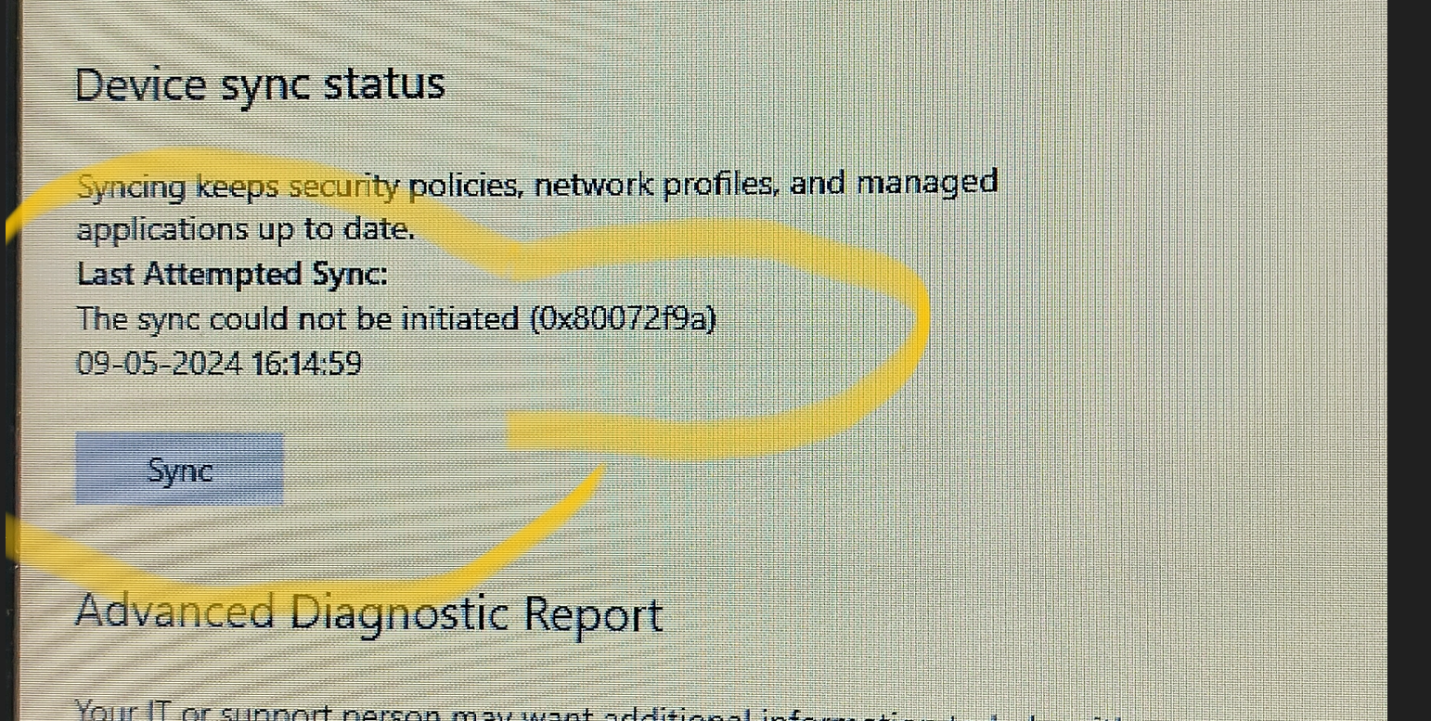
Image Source: Microsoft
Issue: One of the most common Microsoft Endpoint Manager problems is when devices fail to sync. Without proper sync, updates are missed, apps may not function correctly and compliance data is not reflected in the admin center. Learn more about device sync troubleshooting from Microsoft. How To Fix It:- Check Internet Connection: Ensure the device is connected to a stable network before attempting sync.
- Manual Sync: From the Endpoint Manager admin center, select the device and manually trigger a sync.
- Review Compliance Status: Confirm the device meets compliance rules, since non compliant devices often block successful sync.
- Update Device Certificates: Expired or invalid certificates can prevent sync, so always verify and renew them.
2. Difficulty Logging in or Frequent Sign Out Problems
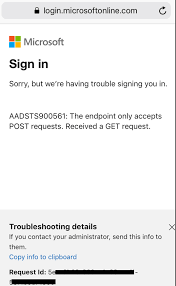
Image Source: Microsoft
Issue: Users often face login errors or unexpected sign outs while using apps. These issues typically occur due to outdated login credentials, corrupted cache files or incorrect system configurations. How To Fix It:- Verify Credentials: Double check usernames and passwords, as even small errors can prevent access.
- Clear Cache and Credentials: Remove stored credentials and clear Teams or app cache to start fresh.
- Update System Settings: Outdated OS or mismatched security settings can cause Issues in Microsoft Endpoint Manager, so always keep them updated.
- Check Policy Sync: Sometimes a Policy Not Applying in Intune forces sign out errors. Manually syncing the device often resolves this.
3. Intune App Installation Problems
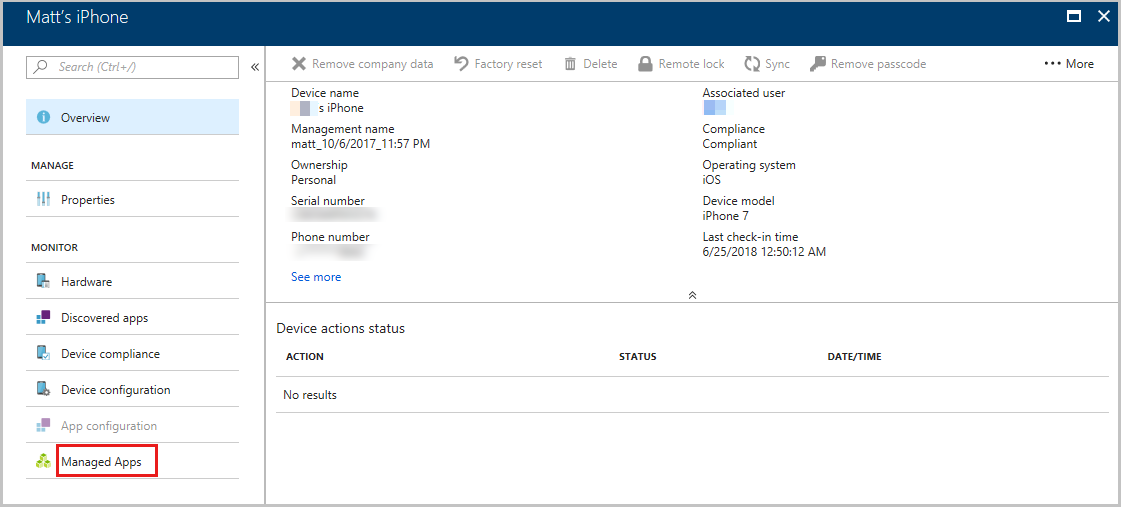
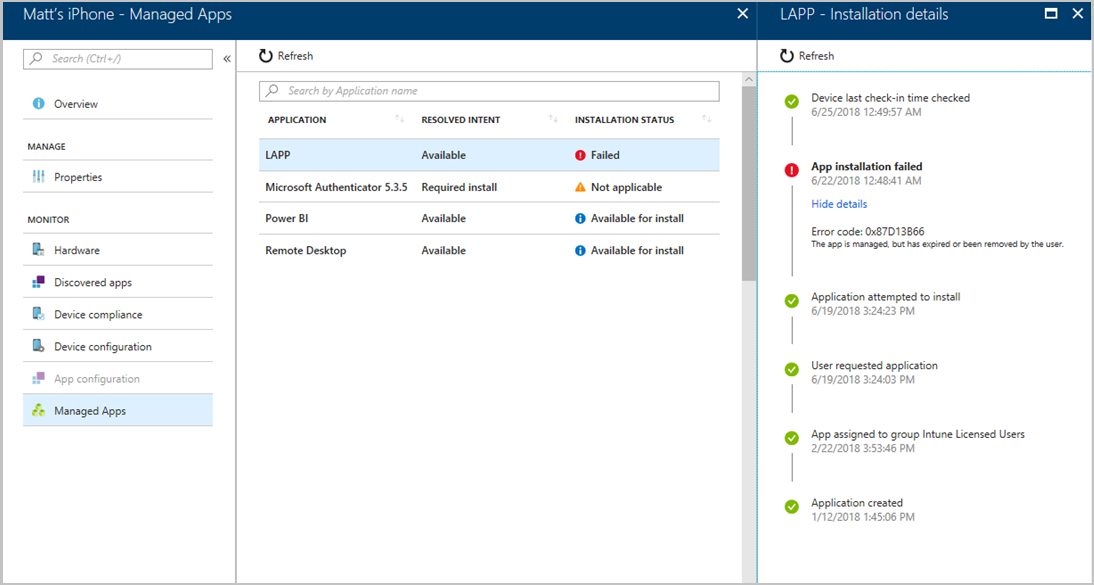
Image Source: Microsoft
Issue: Failed app installations are among the most disruptive Common Microsoft Endpoint Manager Problems. Users cannot access critical business apps, leading to lost time and reduced productivity. How To Fix It:- Verify App Configuration: Check if the app is properly added and assigned in the Intune admin center.
- Confirm Compatibility: Ensure the app supports the device’s OS version and hardware specifications.
- Reassign Deployment: If installation continues to fail, remove and reassign the app deployment profile.
- Check Storage Space: Low storage is often overlooked but can cause failed installations.
4. Policy Not Applying in Intune
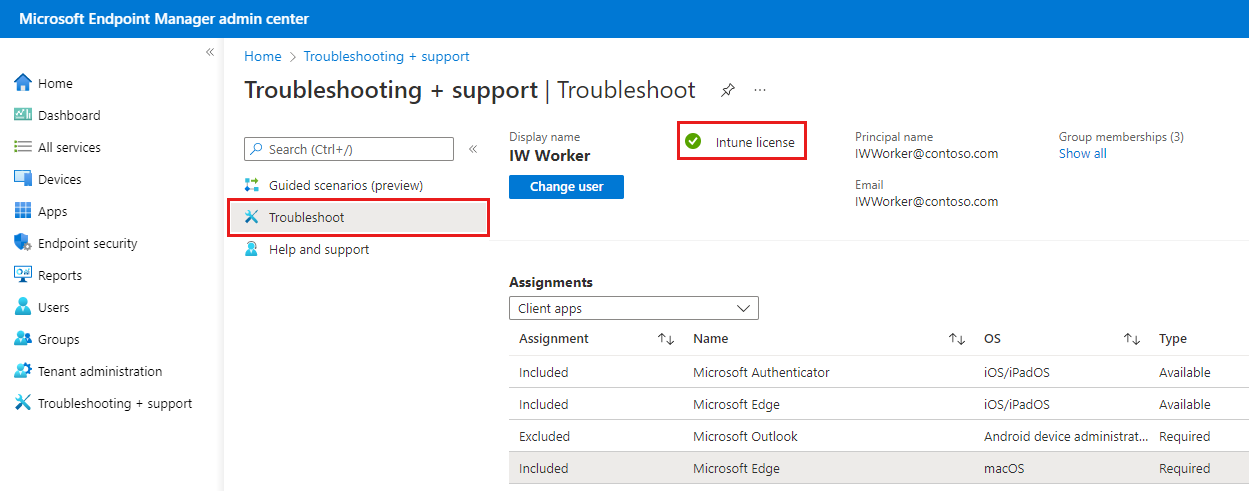
Image Source: Microsoft
Issue: Security and compliance policies sometimes fail to apply on devices. This can leave devices vulnerable or non compliant with company standards. How To Fix It:- Verify Enrollment: Ensure the device is properly enrolled in Intune and linked to the right user account.
- Manual Sync: Force a sync to push policies immediately.
- Check Policy Assignment: Make sure the policy is assigned to the correct groups or devices.
- Review Conflicts: Conflicting policies can cancel each other out. Always resolve conflicts in the admin center.
5. Compliance Errors
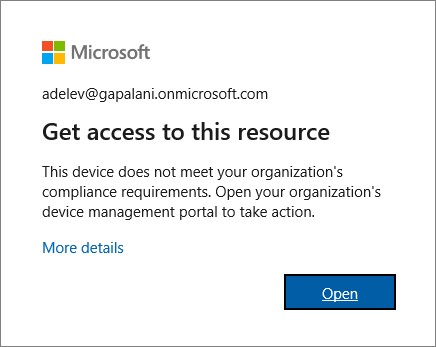
Image Source: Microsoft
Issue: Devices can go out of compliance when software is outdated, security patches are missing or required settings are not applied. This can block users from accessing critical company resources. How To Fix It:- Update Operating System: Keep devices updated with the latest OS patches.
- Verify Compliance Rules: Review rules in the Endpoint Manager admin center and confirm they match business needs.
- Notify Users: Remind users to update or enable features like encryption to stay compliant.
- Automate Updates: Use Endpoint Manager to push updates regularly and reduce manual errors.
6. Application Crashes After Deployment
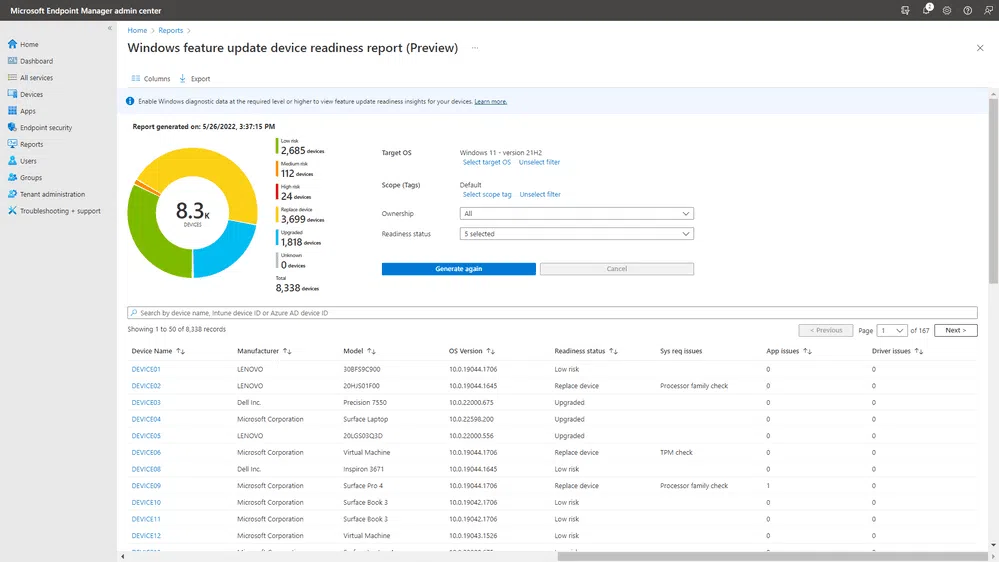
Image Source: Microsoft
Issue: Sometimes apps crash even after successful deployment. This often happens due to compatibility issues, corrupted files or outdated versions. How To Fix It:- Test with a Pilot Group: Always roll out new apps to a small group first to identify issues early.
- Verify Version Compatibility: Confirm that the app version works smoothly with the device OS.
- Reinstall the App: If corruption is suspected, remove and redeploy the app.
- Check Dependencies: Some apps need supporting frameworks. Ensure all dependencies are installed.
7. Device Enrollment Failures
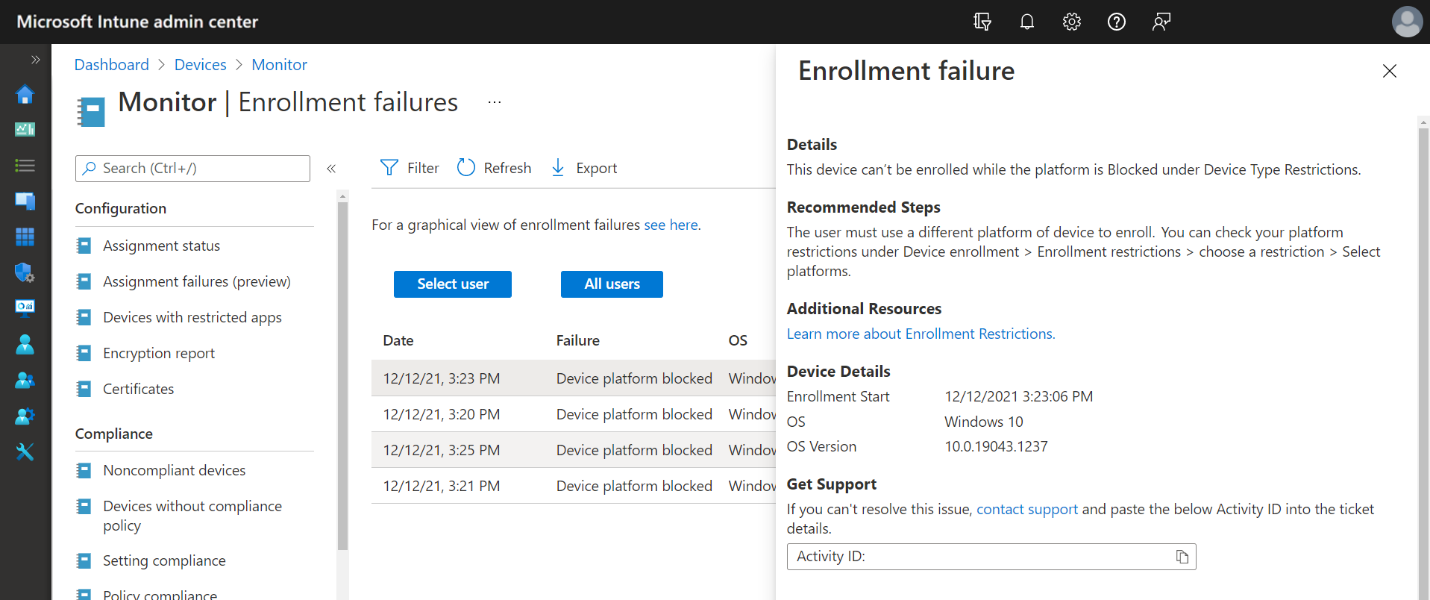
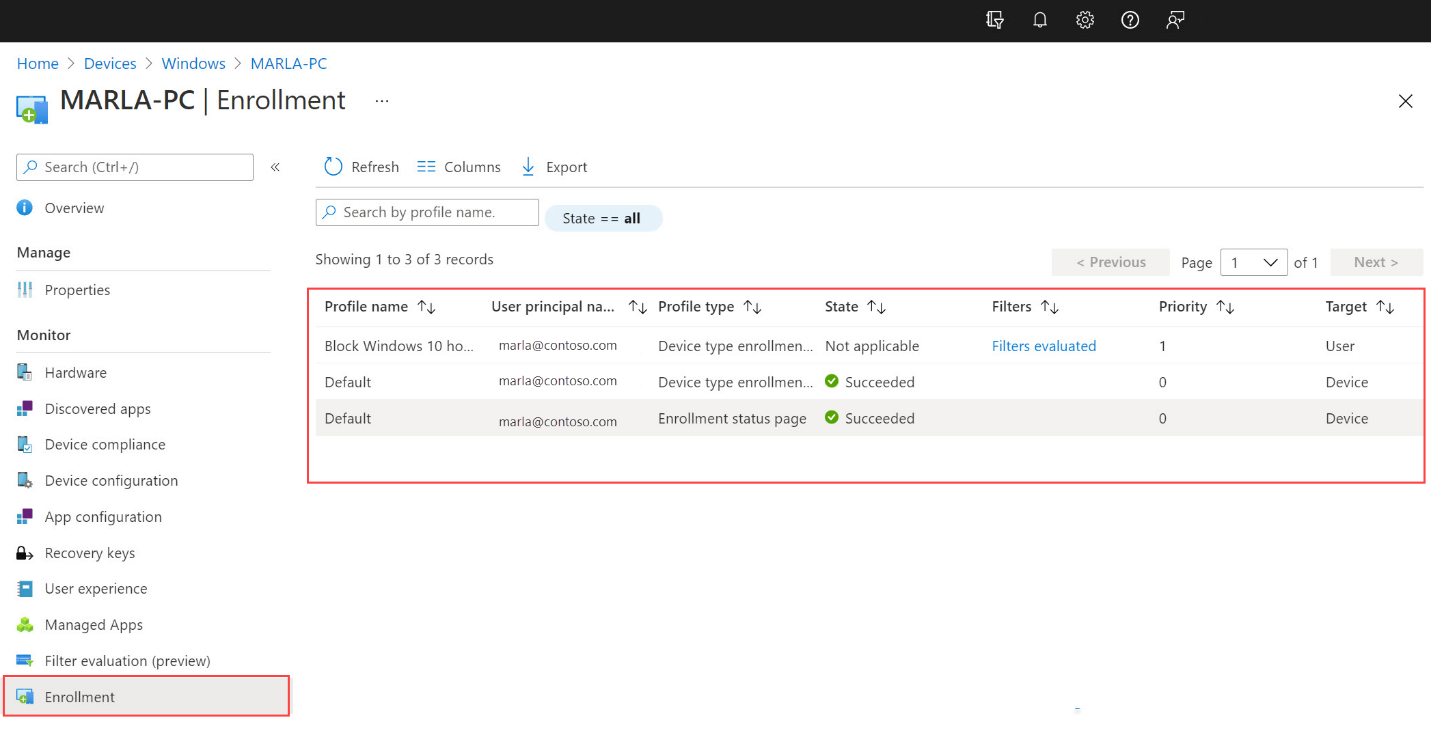
Image Source: Microsoft
Issue: New devices occasionally fail to enroll in Microsoft Endpoint Manager. This stops users from receiving apps, security updates and compliance policies. How To Fix It:- Verify Prerequisites: Confirm the device meets enrollment requirements such as supported OS.
- Check Licensing: Ensure the user has a valid Intune license before attempting enrollment.
- Reset and Retry: If the device continues to fail, reset it and try enrolling again.
- Review Enrollment Restrictions: Sometimes restrictions block devices. Adjust settings in the admin center if needed.
Guide To Troubleshooting Microsoft Endpoint Manager Issues
When devices or apps stop working in a business environment, it affects employees directly. A sales executive may not be able to access CRM data or an HR manager may fail to install payroll apps. These situations highlight why troubleshooting Microsoft Endpoint Manager issues is important. The following step by step guide explains each problem with a practical scenario and solution:Step 1: Check Device Enrollment and Sync
⚠️ Problem: An employee reports that their laptop is not receiving the latest security updates. They are worried about being unable to access company resources.💡 Solution:
The first step in troubleshooting Microsoft Endpoint Manager issues is checking device enrollment. Review the enrollment profile and confirm the device is properly registered. Also verify the network connection. In many cases, a quick re-enrollment or a manual sync restores the connection and allows the device to receive updates again.Step 2: Resolve Intune App Installation Problems
⚠️ Problem: A field worker cannot install a critical project management app through Intune, leaving them unable to update client tasks on time.💡 Solution:
When users face such problems, check app assignment, license availability and device compatibility. Many Intune app installation problems come from misconfigured deployment settings. Updating the app package and reassigning it to the correct user group usually resolves the error, ensuring the worker can continue their tasks without delay.Step 3: Fix Intune Device Issues
⚠️ Problem: A finance manager notices that their tablet shows compliance errors and refuses access to secure company data.💡 Solution:
To fix Intune device issues, review compliance policies in the Endpoint Manager console, confirm the operating system is updated and verify that the device meets security standards. This reduces cases where the policy is not applying in Intune correctly and ensures that users regain access to essential resources safely.Step 4: Review Policy Conflicts
⚠️ Problem: An IT team finds that some employees cannot connect to Wi Fi while others cannot use company email. After investigation, they discover conflicting configuration profiles.💡 Solution:
Sometimes different configuration profiles apply contradictory rules to the same device. To resolve this, remove duplicate profiles and consolidate policies. Keeping policies clean ensures that changes are pushed smoothly, preventing disruptions for employees and reducing IT workload.