Prerequisites
Before configuring Microsoft Intune for Windows 10, you need to make sure you have the following prerequisites:- An Azure Active Directory (AAD) account
- Windows 10 devices
- A Global administrator account in AAD
- Internet connectivity
- Microsoft Endpoint Manager admin centre access
- A device policy
- A Windows Update for Business policy
Configure Microsoft Intune for Windows 10 version 1607 and later device
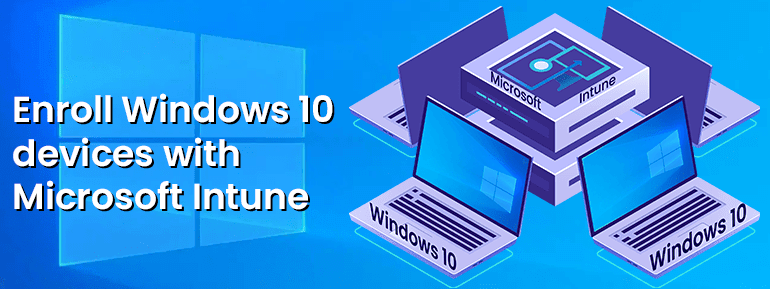
We will walk you through the steps to configure Microsoft Intune for Windows 10 version 1607 or later. Step 1: Sign in to the Microsoft Endpoint Manager Admin centre To start, sign in to the Microsoft Endpoint Manager Admin centre using your Microsoft 365 administrator account. This is the central location where you'll manage your devices and configure your settings. Step 2: Navigate to Windows Configuration profiles Once you're signed in, navigate to Devices > Windows and then select Configuration Profiles. This is where you'll create profiles that dictate the settings and restrictions for your Windows 10 devices. Step 3: Create a new Configuration profile Click on "Create profile" and give the profile a name. Select Windows 10 version 1607 and later as the platform and configure the settings for your devices. For example, you can control access to the Windows Store, turn off Cortana, and control access to the Start menu. Step 4: Deploy the Configuration profile After you've created your Configuration profile, it's time to deploy it to your devices. Navigate to Devices > Windows and then select Deployment profiles. Create a new Deployment profile and select the Configuration profile you created in step 3. Assign your Deployment profile to your users or devices by using groups or targeting individual devices. Step 5: Verify the Configuration profile Once you've assigned the Deployment profile, you can verify that the settings are correctly applied by signing in to a Windows 10 device with a user account member of the target group. Check the settings and restrictions to ensure that they are configured as intended.Configure Microsoft Intune for Windows 10 version 1511 and earlier device
Here are the steps for configuring Microsoft Intune on devices with Windows 10 version 1511 or earlier. Step 1: Sign in to the Microsoft Intune portal To start, sign in to the Microsoft Intune portal using your Microsoft 365 administrator account. This is the central location where you'll manage your devices and configure your settings. Step 2: Navigate to the Mobile Device Management (MDM) enrollment settings Once signed in, navigate to the Mobile Device Management (MDM) enrollment settings. This is where you'll set up the enrollment process for your Windows 10 devices. Step 3: Create a new MDM enrollment profile Create a new MDM enrollment profile by clicking on the "Add profile" button. Give the profile a name and select Windows 8.1 or later as the platform. Configure the settings for your devices, such as requiring a password or restricting access to the Windows Store. Step 4: Assign the MDM enrollment profile After creating the MDM enrollment profile, you'll need to assign it to your Windows 10 devices. This can be done by using groups or targeting individual devices. Step 5: Verify the MDM enrollment Once the MDM enrollment profile has been issued, you can double-check that the settings have been properly applied by logging in to a Windows 10 device using an account that is a part of the intended audience. Make sure everything is set up as it should be by double-checking the various configuration options and constraints.Wrapping up:
Configuring Microsoft Intune for Windows 10 is a simple and effective way to manage and secure your devices from the cloud. With Microsoft Intune, you have the ability to control the access and usage of your devices, ensuring the protection of your data and devices. Integrating Microsoft Intune with Windows 10 makes device management and security accessible and convenient for organizations of all sizes. We are here to help you get the most out of your Microsoft Intune deployment by providing expert guidance, support, and resources. With us, you can take full advantage of the benefits of Microsoft Intune and ensure the protection of your devices and data.We are, at TOS:
- Your partner for effective and efficient device management with Microsoft Intune.
- Simplify your device management with Microsoft Intune and us.
- Experience hassle-free device security with Microsoft Intune and us.
- Secure your devices and protect your data.
- Making device management and security accessible and convenient with Microsoft Intune.